How to Use Canva AI: The Complete Guide to Creating Professional Designs Automatically
In today’s digital era, knowing how to use Canva AI has become an essential skill for anyone who needs to create stunning visuals quickly. Canva AI, powered by advanced artificial intelligence and the Magic Studio suite, makes it incredibly easy for beginners and professionals alike to design polished, professional-quality graphics without requiring any design experience whatsoever. This comprehensive guide will teach you everything you need to know about how to use Canva AI features effectively, from the basics to advanced techniques, so you can create amazing designs in just minutes.
How to Use Canva AI: What is It?
Canva AI represents a revolutionary approach to graphic design. It is a completehttps://www.canva.com suite of artificial intelligence tools specifically designed to automate and streamline the entire creative process. Magic Studio, Canva’s premium AI feature collection, provides intelligent tools that allow users to generate, edit, and optimize designs with unprecedented speed and accuracy. Whether you’re looking to create social media graphics, marketing materials, or professional presentations, Canva AI takes care of the heavy lifting, letting you focus on what matters most—your creative vision.
How to Use Canva AI: Magic Studio Features Overview
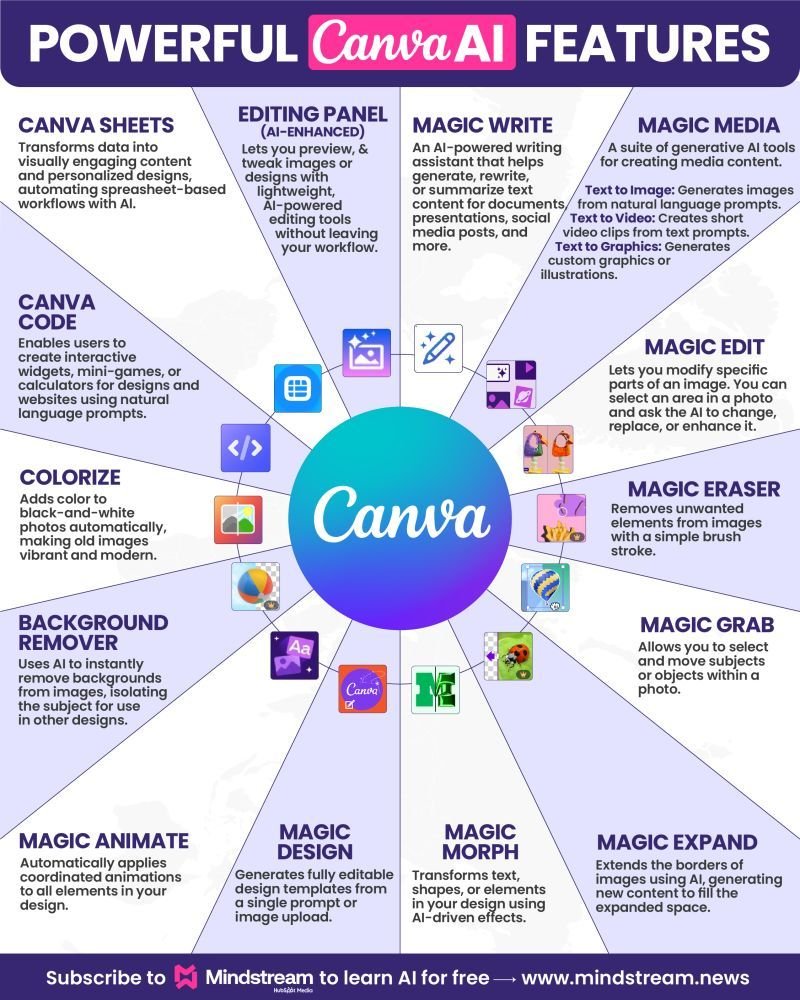
Canva’s Magic Studio includes several powerful AI-driven features that work together seamlessly. These tools are designed to reduce design time by up to 70% while maintaining professional quality standards. Each feature serves a specific purpose in your design workflow, from initial concept to final polish. Understanding how each tool works and when to use it is key to maximizing Canva AI’s potential for your projects.
How to Use Canva AI: Key Features Explained
1. Magic Design
Magic Design is the cornerstone of automated design creation in Canva. This intelligent feature analyzes your input—whether it’s uploaded images, text descriptions, or design briefs—and automatically generates multiple professionally-designed layout options tailored to your specific needs. Rather than starting from a blank canvas, Magic Design presents you with curated, customizable templates that incorporate current design trends and best practices. You simply select the template that resonates with your vision, and you’re ready to customize further or publish immediately.
2. Magic Edit & Magic Eraser
These two features represent some of the most powerful content editing capabilities available in design software today.
Magic Edit: This intelligent tool allows you to modify any element within your photos. Simply brush over the area you want to change and describe what you’d like to add or modify. The AI technology instantly processes your request, making natural-looking adjustments that maintain visual consistency with the rest of your image.
Magic Eraser: Remove unwanted objects from your photos with a single brush stroke. Unlike traditional erasing tools, Magic Eraser uses intelligent algorithms to automatically fill in the background, removing objects seamlessly without leaving any trace.
3. Magic Media (Text to Image & Video)
Transform your ideas into unique visual content instantly. With Magic Media, you describe the image or video you envision, specify your preferred artistic style, and let the AI bring your concept to life. Whether you want a cyberpunk-inspired cityscape or delicate watercolor flowers, Canva AI can generate original, high-quality imagery from pure text descriptions in seconds.
4. Magic Expand
When your image is too small for your canvas, Magic Expand intelligently predicts and generates additional content to fill the space. Using sophisticated AI algorithms, it extends your image’s boundaries with contextually appropriate content that matches your original photo’s style and tone perfectly.
5. Magic Write
Magic Write brings artificial intelligence to your copywriting. Whether you need to write compelling headlines, create engaging social media captions, rewrite content for a different tone, or generate completely original copy, this AI writing assistant delivers polished, professional-quality text instantly.
Complete Step-by-Step Guide: How to Use Canva AI for Professional Design
Step 1: Launch Canva and Access Magic Design
Begin by opening the Canva application or visiting canva.com in your web browser. Look for the prominent “Magic Design” button on the homepage, or navigate to the template section for the specific design type you need—whether that’s Instagram posts, business cards, presentations, or any other format. Click on Magic Design to initiate the AI-powered design process. The platform will guide you through selecting your design type and dimensions.
Step 2: Provide Your Design Brief or Upload Media
Now you have two options. First, you can click “Insert Media” to upload your own photos, logos, or images that should serve as the foundation for your design. Alternatively, select “Describe Your Design” and provide a detailed text description of what you’re looking to create. Be as specific as possible—the more detailed your description, the better results the AI will generate. For example, instead of simply writing “summer promotion,” try “bright, colorful summer sale poster with beach themes, featuring 40% off discount text.”
Step 3: Review and Select from AI-Generated Layouts
Canva AI will instantly generate several design options based on your input. Take time to review each layout carefully. Each option represents a unique interpretation of your brief, showcasing different color schemes, typography choices, and layout approaches. Select the template that best aligns with your brand identity and project goals. Don’t worry if it’s not perfect—you can customize every element in the next steps.
Step 4: Enhance with Magic Media for Custom Imagery
To add unique, personalized images to your design, access Magic Media from the left sidebar by clicking “Apps” and searching for “Magic Media.” Describe the specific image you need in detail. Choose your preferred artistic style (Film, Dreamy, Anime, 3D, or others), select the appropriate aspect ratio for your design, and click “Generate Image.” Once the AI creates your image, simply drag it into your design. You can generate multiple variations until you find the perfect match.
Step 5: Refine with Magic Edit
To make targeted adjustments to any image within your design, click on the image first. Then select “Edit Photo” from the toolbar at the top of the screen. Click on “Magic Edit” to activate the intelligent editing feature. Use the brush to highlight the area you want to modify, then describe your desired change in simple language. For instance, you might write “change the shirt to red” or “add a sunset background.” Click generate, and watch as the AI makes natural-looking adjustments instantly.
Step 6: Automate Your Text with Magic Write
Click on any text element within your design to select it. Look for the “Magic Write” icon in the toolbar. Type your instructions clearly—for example, “Make this more professional,” “Write a catchy headline for a coffee promotion,” or “Rewrite this to be more compelling.” The AI will generate alternatives for you to choose from, maintaining consistency with your overall design aesthetic.
How to Use Canva AI: Advanced Tips for Maximizing Results
1. Master the Art of Detailed Prompts
The quality of your AI-generated content directly correlates to the quality of your input descriptions. Vague prompts produce vague results. Instead of “dog,” write “golden retriever puppy playing in a sunny meadow with professional cinematic lighting.” Include specific details about colors, mood, style, composition, and any other relevant elements. Think of your prompt as a detailed creative brief you’d give to a professional designer.
2. Prioritize High-Quality Source Images
The better your original photographs and images, the better your results will be. Magic Expand, Magic Edit, and Magic Eraser all perform optimally when working with clear, well-lit, high-resolution source material. Low-resolution or blurry images will produce inferior results. Invest in quality photography or source images from professional stock photo services.
3. Combine Multiple Canva AI Features Strategically
The true power of Canva AI emerges when you combine multiple features. For example, start with Magic Design for your overall layout, use Magic Media to generate unique background imagery, apply Magic Edit to refine specific elements, and finish with Magic Write to create compelling headlines and copy. This layered approach produces genuinely professional-quality designs that would typically require hiring a designer.
4. Experiment Fearlessly with Variations
Canva AI generates multiple options for nearly every task. Don’t settle for the first result. Generate multiple variations, explore different styles, and try different approaches. This experimentation process often reveals design possibilities you hadn’t considered, leading to more creative and engaging final products.
5. Maintain Consistent Brand Identity
While using AI-generated elements, always ensure they align with your brand’s visual identity. Customize colors, fonts, and styles to match your brand guidelines. The AI-generated content should enhance your brand, not override it.
How to Use Canva AI: Why Professionals Choose It
Canva AI democratizes professional design. It eliminates the steep learning curve typically associated with professional design software while maintaining professional-quality output. Small business owners can create marketing materials that rival those produced by dedicated design teams. Content creators can maintain consistent visual branding across multiple platforms. Marketing professionals can produce designs 70% faster than traditional methods while maintaining quality standards. Students and educators can create engaging visual content without specialized training.
How to Use Canva AI: Best Practices for Effectiveness
1. Plan Before You Design
Before opening Canva, spend a moment planning your project. What’s your goal? Who’s your audience? What’s your brand aesthetic? Having clear answers to these questions will help you provide better descriptions to Canva AI and make better selections from the generated options.
2. Iterate and Refine
Rarely is the first result perfect. Use Canva AI’s tools iteratively. Generate a design, refine it, adjust elements, and regenerate until you achieve your desired result. This iterative approach typically produces superior outcomes.
3. Balance AI Generation with Human Customization
While Canva AI is powerful, the best results come from combining AI capabilities with human creativity. Use AI for efficiency and inspiration, then add your personal touch and brand-specific customization.
How to Use Canva AI: Comprehensive FAQ
Is Canva AI Free to Use?
Canva AI is available in both free and premium versions. Basic features are accessible with a free Canva account, but for comprehensive access to all Magic Studio features, unlimited content generation, and premium design assets, a Canva Pro subscription is required. The Pro plan typically includes priority processing and access to exclusive features.
Can I Use Canva AI on My Mobile Device?
Absolutely. Canva offers fully-featured mobile applications for both iOS and Android devices. Nearly all Canva AI features, including Magic Design, Magic Media, and Magic Write, function seamlessly on mobile. This means you can create professional designs anywhere, anytime—whether you’re in the office, at home, or on the go.
Can I Use AI-Generated Designs Commercially?
Yes, designs created with Canva AI can be used for commercial purposes. However, ensure your Canva account is active (whether free or Pro), and respect all terms of service. Additionally, verify that any stock images or third-party assets used within your design have appropriate commercial licenses.
How Can I Ensure the Best Results from Canva AI?
Consistently achieve excellent results by following these practices: write detailed, specific prompts; use high-quality source images; combine multiple AI features strategically; generate multiple variations and select the best; maintain visual brand consistency; and iterate until satisfied. The more thoughtfully you engage with the tools, the better your results will be.
Is There a Learning Curve for Canva AI?
Canva AI is designed for accessibility—if you can describe what you want, you can use Canva AI effectively. However, users who take time to learn the platform’s full capabilities and experiment with different features typically achieve professional-quality results faster.
Conclusion: How to Use Canva AI to Create Professional Designs
Canva AI represents a transformative shift in how accessible professional design has become. Whether you’re a small business owner, content creator, marketing professional, educator, or student, Canva AI provides the tools to create stunning visual content efficiently and affordably. By following this comprehensive guide and implementing the strategies outlined, you’ll be equipped to create designs that impress and engage your audience. The question isn’t whether you can design professionally—with Canva AI, the question is: what will you create?