












The Ultimate Guide to USB Port Color Meanings: Deciphering Speed and Power Codes
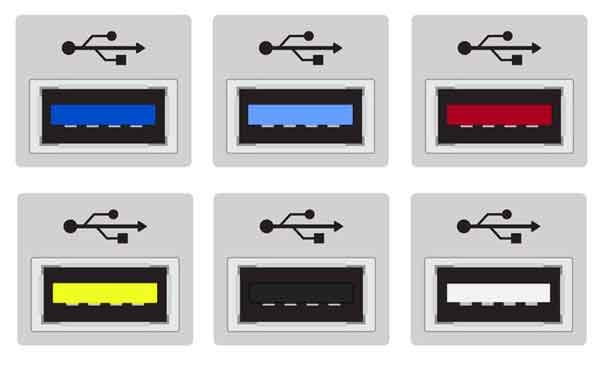
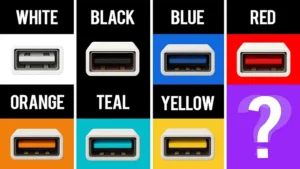
In the world of modern computing, not all “plugs” are created equal. You might have noticed that the USB ports on your laptop, desktop motherboard, or wall charger come in a vibrant array of colors: white, black, blue, teal, red, and yellow. To the casual user, these look like simple design choices. However, in the world of Information Technology, these colors are critical visual shorthand. They indicate the generation of the technology, the maximum data transfer rate, and the power delivery capabilities of that specific port.
If you have ever wondered why your external hard drive feels sluggish or why your smartphone charges faster on one port than another, this guide to USB port color meanings will provide the answers you need.
1. The Evolution of USB Standards and Color Coding
Before we dive into the specific colors, it is important to understand why this coding exists. The USB-IF (USB Implementers Forum) creates standards so that manufacturers can ensure compatibility. As technology progressed from the 1990s to today, speeds jumped from a measly 1.5 Mbps to a staggering 40 Gbps. Colors were introduced to help users identify these “SuperSpeed” capabilities without needing to read a technical manual.
White USB Ports: The Legacy (USB 1.0 / 1.1)
The white USB port is the “grandfather” of the group. Launched in 1996, USB 1.0 was the first step toward universal connectivity.
- Technical Speed: It offers a maximum transfer rate of 12 Mbps.
- Current Use: Today, white ports are virtually extinct on new computers. You will mostly find them on “legacy” hardware or very cheap peripherals.
- Best For: Low-bandwidth devices like a computer mouse or a basic keyboard. Plugging a modern flash drive into a white port will result in painfully slow data transfers.
Black USB Ports: The Reliable Standard (USB 2.0)
Introduced in the year 2000, the black port—officially known as Hi-Speed USB—became the global standard for over a decade. Even today, most PC cases include at least two black ports.
- Technical Speed: It caps out at 480 Mbps.
- The “Bottleneck” Factor: While 480 Mbps sounds fast, it is shared across all devices on that controller. If you are moving a 10GB video file, a black port will take significantly longer than its blue counterparts.
- Best For: Devices that don’t need high speed, such as printers, USB headsets, webcams, and wireless dongles.
2. USB Port Color Meanings: Entering the Era of SuperSpeed (SS)
As file sizes grew with 4K video and high-resolution photography, the industry needed more “bandwidth.” This led to the creation of the Blue, Teal, and Red ports.
Blue USB Ports: The Speed Demon (USB 3.0 / 3.2 Gen 1)
The blue port marked the debut of USB 3.0 SuperSpeed. It was a game-changer because it added five extra pins to the connector, allowing for “full-duplex” communication (sending and receiving data at the same time).
- Technical Speed: Up to 5 Gbps.
- Why it matters: It is roughly 10 times faster than the black USB 2.0 port.
- Best For: External SSDs, high-speed flash drives, and digital cameras. If you are backing up your computer, always look for the blue port.
Teal or Turquoise USB Ports: The Power User’s Choice (USB 3.1 Gen 2)
The teal port (a distinct blue-green hue) represents USB 3.1 Gen 2. It is often found on high-end gaming motherboards and professional workstations.
- Technical Speed: Up to 10 Gbps.
- Best For: Professional video editors working directly off an external drive or NVMe enclosures. It provides enough overhead to handle massive data streams without stuttering.
- Red USB Ports: Speed and Performance (USB 3.2)
Red ports are often the fastest “Type-A” ports available on a machine. In many cases, manufacturers use red to signify USB 3.2 standards.
- Technical Speed: Can reach up to 20 Gbps in some configurations.
- Secondary Feature: Red ports often double as “High-Power” ports, capable of delivering more milliamps to charge tablets or power-hungry peripherals like external DVD burners.
3. Special Purpose Ports: Charging and Power
Not every USB port is designed primarily for data. Some are engineered to be “power stations” for your mobile devices.
Yellow and Orange USB Ports: Sleep-and-Charge
Yellow and Orange ports are unique. They are typically optimized for Power Delivery (PD) rather than just raw data speed.
- Sleep-and-Charge: This is the most important feature. Usually, when you turn off your laptop, the USB ports stop providing power. A yellow or orange port remains “live.” This allows you to charge your smartphone overnight from your laptop battery or wall connection while the computer is asleep.
- High Amperage: These ports provide more “current” (Amps), meaning your phone will charge from 0% to 50% much faster than it would in a standard black or blue port.
4. The Confusing World of USB Naming (SEO Essential)
One reason people struggle with USB colors is the confusing rebranding by the USB-IF. To help your SEO and technical understanding, here is the breakdown of the “Gen” naming convention:
- USB 3.0 is now officially USB 3.2 Gen 1 (5 Gbps).
- USB 3.1 is now officially USB 3.2 Gen 2 (10 Gbps).
- USB 3.2 (2×2) is the latest standard for Type-A, reaching 20 Gbps.
- When shopping for cables, look for the “Gbps” rating rather than just the version number, as the numbers change frequently.
5. Troubleshooting: Why is my Port not Performing?
Even if you use the correct color, you might not get the advertised speeds. Here are three reasons why:
- The Cable Factor: If you plug a USB 2.0 cable (usually black-tipped) into a Blue USB 3.0 port, you will only get USB 2.0 speeds. The “weakest link” in the chain determines the speed.
- Driver Issues: Sometimes, Windows or macOS requires specific “eXtensible Host Controller” drivers to unlock the full speed of blue or red ports.
- Port Sharing: On many laptops, two USB ports might share a single internal controller. If you plug two high-speed drives into adjacent ports, they will fight for bandwidth.
6. Frequently Asked Questions (FAQ)
Can I plug a Black USB cable into a Blue port?
Yes. USB is “backward compatible.” It will work perfectly, but it will operate at the slower speed of the black cable (480 Mbps).
Is the color always accurate?
Usually, but not always. While most reputable brands like ASUS, Dell, and HP follow these codes, some “no-name” manufacturers might use blue plastic just to make a slow port look fast. Always check your device’s technical specs if in doubt.
What about USB-C?
USB-C ports usually don’t use color coding because they are too small. Instead, look for small icons next to the port:
- A Lightning Bolt: Indicates Thunderbolt 3 or 4 (40 Gbps).
- A Battery Icon: Indicates high-speed charging.
- “SS”: Indicates SuperSpeed.
Conclusion: Maximize Your Hardware Potential
By paying attention to the USB port color meanings, you can significantly improve your daily workflow. Use the Black ports for your mouse and keyboard, save the Blue and Teal ports for your external backups, and look for the Yellow or Red ports when your smartphone battery is running low.
Understanding these “little-known speed codes” ensures that you are getting the full value out of the technology you paid for.